
NFC

Take a break and read all about it

How to Choose the Right NFC Business Cards for Your Project

NFC business cards look simple: tap a phone and open a profile, contact page, product catalog, or lead form. The hard part is choosing the card specification that will still work well after printing, encoding, shipping, and daily use.

For most projects, the safest NFC business card is a printed PVC card with an NTAG chip and a short dynamic URL. Choose metal when the brand needs a premium feel and the supplier can prove the NFC tap area works reliably. Choose wood, bamboo, or paper when the material supports the campaign story and the expected card life is shorter. For any custom rollout, confirm the material, chip, NFC record, QR backup, and sample test results before mass production.

Quick Comparison: NFC Business Card Options

Card type Best for Main tradeoff Confirm before ordering
PVC or PET NFC card Sales teams, staff cards, repeat daily use Practical and durable, but less premium than metal or wood Thickness, finish, chip, printing, encoding, QR/serial needs
Metal NFC card Executives, VIP gifts, luxury brands Premium feel, but metal can block NFC if the structure is wrong NFC tap area, anti-metal design, insert position, phone testing
Wood or bamboo NFC card Eco, hospitality, lifestyle, and wellness brands Natural look, but grain and print color can vary Engraving effect, moisture resistance, flatness, edge finish
Paper or laminated NFC card Events, conferences, short-term campaigns Lower cost, but less durable for daily wallet use Lamination, edge protection, expected card lifetime
NFC sticker or inlay Pilots and retrofitting existing cards Fast to test, but surface material affects reading Adhesive, placement, card surface, phone scan position

Start With the Tap Experience

Before choosing a material, decide what should happen after someone taps the card. A short URL is usually the best NFC record for business cards because the destination can be changed later without re-encoding every card. The URL can open a digital profile, contact form, LinkedIn page, WhatsApp chat, product catalog, or campaign landing page.

Storing a full vCard directly on the chip can work, but it uses more memory and is less flexible. If the card also needs access control, membership ID, or a closed reader system, confirm the reader and chip requirement first. A simple phone-tap NFC card and an access-control smart card are not always the same specification.

Choose the NFC Chip by Data Size

For phone-based NFC business cards, 13.56 MHz NFC chips that support NDEF records are the normal choice. NTAG213, NTAG215, and NTAG216 are common options.

  • NTAG213: a good fit for a short URL, profile link, or basic campaign page.
  • NTAG215: useful when the record needs more space or the project may change later.
  • NTAG216: the safer choice for larger records, longer URLs, or projects where the final encoded data is not fixed yet.

For many custom NFC business cards, NTAG213 is enough when the chip only opens a short dynamic URL. NTAG215 or NTAG216 becomes useful when you need larger data or extra margin. Before bulk ordering, ask the supplier to encode your actual record on a sample and confirm it scans correctly. WXR has a practical guide to NTAG213, NTAG215, and NTAG216, plus related information on 13.56 MHz RFID tags.

Match the Material to the Project

PVC and PET are the practical default. They support full-color printing, matte or glossy finishes, QR codes, serial numbers, and standard wallet-friendly dimensions. If you need hundreds or thousands of consistent team cards, this format is easier to control and reorder.

Metal NFC business cards are different. Metal can interfere with the antenna, so the card needs an engineered tap area, anti-metal layer, or non-metal insert. Do not approve a metal card from appearance alone. Test with iPhone and Android phones, with and without common phone cases, and make the tap position clear in the design if necessary.

Wood, bamboo, and paper cards are stronger brand choices than technical defaults. Wood and bamboo work well for natural, hospitality, and lifestyle positioning, but grain and engraving vary from card to card. Paper or laminated cards are better for short-term events where distribution volume matters more than long service life.

Plan Printing, QR Backup, and Encoding

A QR code is still useful even when NFC is the main feature. It gives users a fallback when NFC is blocked by a thick case, unfamiliar to the recipient, or not triggered on the first tap. For business cards, a good layout often combines NFC, QR code, logo, name, title, and a short call-to-action.

Before artwork approval, decide whether all cards use the same URL or each employee needs a unique profile link. Confirm whether the chip should remain rewritable, be password-protected, or be locked after encoding. Also check whether you need UID, serial number, QR code, barcode, or employee number printing. If the destination may change later, use a redirect or profile platform instead of encoding a long final URL directly. For more background, see WXR’s guide on whether RFID and NFC tags can be rewritten.

Test Samples Before Mass Production

Ask for samples using the same chip, material, finish, thickness, and printed design planned for production. Then test the real user experience: tap with several iPhone and Android models, scan with common phone cases, check the front and back tap positions, open the encoded URL or NDEF record, and scan the printed QR code under normal office and event lighting.

For metal, wood, or unusual card structures, test more than one sample. For company rollouts, record the approved chip, URL format, artwork version, finish, dimensions, and encoding rule. This makes future reorders easier and reduces the chance of a second batch behaving differently.

Common Buying Mistakes

The biggest mistake is choosing the best-looking card before defining the NFC workflow. A premium card that scans poorly will create support problems. Another mistake is encoding too much data when a short dynamic URL would be easier to manage. Teams also forget that phone model, case thickness, antenna position, card material, and tap location can all affect scan behavior.

NFC business cards are more than a software profile. The physical card still needs the right chip, antenna, substrate, printing, encoding, and QC process.

How WXR Can Support Custom NFC Business Card Projects

WXR manufactures custom NFC and RFID products for project buyers, distributors, and system integrators. For NFC business card projects, WXR can help compare custom NFC tags, card materials, NTAG chip options, logo printing, QR/serial printing, data encoding, and sample testing. If your project also connects with access control or staff ID, review WXR’s custom RFID cards options as well.

To get a practical recommendation, prepare your application, quantity, preferred material, artwork, chip requirement, URL or NDEF record, personalization needs, and target delivery plan. You can contact WXR to discuss your NFC project and request samples before mass production.

FAQ: Choosing NFC Business Cards

What is the best NFC chip for business cards?

For a simple profile URL, NTAG213 is often enough. Choose NTAG215 or NTAG216 when you need more memory for larger records, richer data, or future encoding changes.

Are metal NFC business cards reliable?

They can be reliable when the card is designed for NFC reading. Confirm the tap area, anti-metal structure, and phone test results before mass production.

Should I encode a vCard or a URL?

A URL is usually better because it can point to a profile or landing page that can be updated later. A vCard can be useful for offline contact sharing, but it uses more memory and is less flexible.

Can NFC business cards be customized for each employee?

Yes. Cards can be printed and encoded with unique names, profile URLs, QR codes, serial numbers, or IDs. The project needs a clean data file and an approved encoding rule before production.

What should I test before ordering in bulk?

Test the chip, material, phone compatibility, tap position, QR backup, printed finish, and encoding behavior. For metal, wood, or unusual card structures, sample testing is especially important.
How to Program Blank Printable NFC Stickers: 8 Steps

Blank printable NFC stickers can be programmed in minutes: create an NDEF record in a phone app, tap the phone to the sticker to write it, then scan the tag again to verify it. A reliable rollout also requires the right chip, printer, mounting surface, lock state, redirect link, and batch QA. This eight-step process covers the complete deployment.

1. Define What the NFC Sticker Should Do

Start with the user action, not the chip. A sticker can open a product page, manual, registration form, menu, social profile, authentication result, or maintenance record.

For public campaigns, write a short HTTPS redirect URL on a domain you control. You can then change the destination without rewriting deployed stickers and add UTM parameters or unique IDs for analytics. Do not store passwords or private customer data; standard NDEF content may be readable by anyone with a compatible phone.

2. Choose the Right Printable NFC Sticker

Confirm the chip, construction, print method, and mounting surface before buying. According to the NXP NTAG213/215/216 datasheet, these chips provide 144, 504, and 888 bytes of user memory respectively.

OptionPractical fitWhat to confirm
NTAG213Short URLs and common tap-to-open usesURL length, phone compatibility, lock requirements
NTAG215Larger NDEF records or application-specific needsActual data size and software support
NTAG216More memory for larger recordsWhether extra memory is genuinely necessary

Ask whether the face stock is designed for your inkjet, laser, thermal transfer, or digital press. Confirm label size, roll core, gap, liner, adhesive, and sensor requirements. A label described as “printable” is not compatible with every printer.

Standard NFC inlays can perform poorly on metal. Use a ferrite-backed on-metal NFC sticker and test it on the actual object. WXR offers NFC tag formats and adhesive RFID stickers for different applications.

3. Design and Print the Sticker

Add a clear NFC symbol and instruction such as “Tap for product details.” A fallback URL or QR code helps when NFC is disabled or unfamiliar.

Follow the printer’s bleed and die-cut requirements. Do not crease, punch, or cut through the antenna. Metallic foil and conductive inks may change RF performance, so test decorated samples. For variable data, map each printed serial number or QR code to the URL encoded in the same label.

4. Program One Pilot Sticker

NFC phones exchange structured data through NDEF, the NFC Data Exchange Format standardized by the NFC Forum.

Use NFC Tools or another reputable NDEF writer that supports your phone and tag type:

  1. Enable NFC on the phone if the device requires it.
  2. Open the app and choose Write or Create Record.
  3. Select URL/URI and enter your short HTTPS link.
  4. Choose the app’s write command.
  5. Hold the phone’s NFC antenna steadily over the center of the sticker until the app confirms success.
  6. Move the phone away, then scan the tag as a normal user.

If writing fails, move the tag slowly around the back of the phone, remove thick or metallic cases, and try again without bending the label.

5. Verify the User Experience

A successful “write” message is not enough. Confirm the exact URL, secure mobile landing page, and normal tap behavior on several current iPhone and Android models. Apple Core NFC and Android NFC handle NDEF tags through different platform features, and antenna positions vary.

Test again after attaching the sticker to its final package, sign, asset, or fixture. Mounting material and nearby metal can change the result.

6. Encode and QA the Batch

For dozens of identical stickers, repeat the approved NDEF record with a phone. For hundreds or thousands, use controlled printing and encoding with variable URLs, serial numbers, QR codes, and verification results.

Record the batch number, printed ID, encoded URL, UID when required, verification result, lock state, and destination. Use 100% electronic verification for high-value unique links or a documented sampling plan for lower-risk identical records.

7. Decide Whether to Lock the Tag

Many blank NFC stickers remain rewritable until locked. Locking can prevent accidental changes, but it does not turn a basic tag into a secure authentication product. Use permanent read-only mode only after the design, NDEF record, redirect, and placement are approved. Test the irreversible workflow on spare samples first.

8. Deploy, Monitor, and Maintain

Clean and dry the surface, apply the sticker flat, and keep it away from edges that fold or flex. Make the tap point visible and reachable. After installation, rescan a sample and monitor redirect logs, landing-page analytics, and failed destinations. Unique redirects also let you disable one damaged or misused label without changing the full campaign.

Printable NFC Sticker Deployment Checklist

  • Confirm the phone action and final landing page.
  • Select adequate chip memory without overspecifying it.
  • Match the label face stock and roll format to the printer.
  • Use an on-metal construction when the mounting surface requires it.
  • Print a clear tap instruction and optional fallback.
  • Write a short HTTPS URL as an NDEF record.
  • Verify the record on multiple iPhone and Android devices.
  • Test after attachment to the real product or surface.
  • Lock only after final approval.
  • Record batch, encoded data, QA result, and deployment location.

Common Mistakes to Avoid

Common failures include using a standard label on metal, choosing an incompatible printer process, cutting the antenna, locking before verification, and testing only one phone. Run a small pilot under production conditions before applying the full batch.

FAQ

Can I program NFC stickers with an iPhone or Android phone?

Yes, many current NFC-enabled iPhone and Android phones can write compatible NDEF tags through an NFC writer app. Device support and antenna position vary, so verify the exact phones used in your project.

Can I print directly on blank NFC stickers?

Yes, when the label face stock and roll or sheet construction are made for your printing process. Confirm inkjet, laser, thermal transfer, or digital press compatibility with the supplier and printer manufacturer before production.

Should I use NTAG213, NTAG215, or NTAG216?

NTAG213 is often sufficient for a short URL. Choose NTAG215 or NTAG216 when the NDEF record requires more memory or the application specifies those chips. Calculate the actual encoded size before ordering.

Do printable NFC stickers work on metal?

Standard NFC stickers often lose performance on metal. Use an on-metal NFC label with a ferrite isolation layer and test it on the final metal surface.

Conclusion

Programming one NFC sticker is easy; deploying a reliable batch requires controlled printing, encoding, testing, and records. Use a short NDEF URL, verify across phones and final surfaces, and lock only after approval.

Need printable NFC stickers for product information, authentication, or smart packaging? Contact WXR with your chip, size, material, printer, surface, artwork, encoding file, quantity, and test requirements. WXR can help compare NTAG213, NTAG215, NTAG216, waterproof, anti-metal, and custom printed formats.

Is RFID the Same as NFC? RFID vs NFC Differences Explained

RFID is not exactly the same as NFC, but the two technologies are closely related. The simplest answer is this: NFC is a specialized type of RFID, while RFID is the larger technology family.

RFID, short for radio frequency identification, uses radio waves to identify tags, cards, labels, wristbands, assets, products, animals, or credentials. NFC, short for near field communication, is a short-range 13.56 MHz technology commonly used by smartphones, payment cards, smart packaging, access cards, and tap-to-read tags.

So if someone asks, “Is NFC RFID?” the technical answer is yes. If they ask, “Can any RFID tag be read by an NFC phone?” the answer is no. That distinction matters when you are choosing tags for a real project.

RFID vs NFC: Quick Comparison

FeatureRFIDNFC
RelationshipBroad technology familySpecialized branch of HF RFID
Typical frequency optionsLF, HF, UHF, active RFID13.56 MHz
Typical readerDedicated RFID reader or access readerSmartphone, NFC reader, payment terminal
Typical rangeNear contact to many meters, depending on systemVery short tap range
Common use casesInventory, logistics, assets, access, laundry, livestock, retailPayments, smart packaging, digital cards, phone taps, access credentials
Best fitIdentification at scale or in controlled workflowsConsumer-friendly close-range interaction

NFC is designed for close, intentional interaction. Broader RFID systems may be designed for long-range scanning, high-speed inventory, rugged tracking, or closed access control environments.

What RFID Means

RFID is an umbrella term. A basic RFID system includes a tag, a reader, and an antenna. The reader sends radio energy or a signal to the tag, and the tag responds with stored information, usually an ID.

RFID tags are commonly grouped by frequency. LF RFID is often used for animal ID and some access systems. HF RFID operates around 13.56 MHz and includes many cards, library tags, and NFC-related tags. UHF RFID is often used for inventory, apparel, logistics, pallets, and asset tracking. RAIN RFID is the common name for passive UHF RFID based on ISO/IEC 18000-63 / GS1 UHF Gen2.

Because RFID covers many frequencies and standards, two RFID products may look similar but be incompatible.

What NFC Means

NFC is built for very short-range communication. The NFC Forum describes NFC as a contactless technology using a 13.56 MHz base frequency, with modes such as reader/writer mode and card emulation. That is why a phone can read an NFC sticker, act like a payment card, or interact with an NFC-enabled product.

NFC’s short range makes the interaction deliberate, which is useful for marketing, authentication, digital business cards, product information, and mobile app triggers.

Are NFC Tags RFID Tags?

Yes. NFC tags are RFID tags, but not every RFID tag is an NFC tag.

An NFC sticker with an NTAG213, NTAG215, or NTAG216 chip is a type of HF RFID tag that a smartphone can usually read. A UHF RFID apparel label, a 125 kHz access fob, or a cattle ear tag may also be RFID, but a normal phone NFC reader will not read it just because it says “RFID.”

This is a common buying mistake. Some buyers need phone-readable NFC tags; others need long-range UHF labels for warehouse inventory. Always confirm frequency, chip, protocol, and reader compatibility.

When Should You Choose NFC?

Choose NFC when the project needs a smartphone tap or a very close-range user action.

Good NFC use cases include smart packaging, product authentication, digital business cards, customer engagement, mobile app triggers, contactless membership cards, and access credentials.

WXR can support custom NFC tags with chip selection, material choice, printing, UID/serial/QR printing, encoding, and sample testing.

When Should You Choose RFID Instead of NFC?

Choose broader RFID when the project needs range, speed, automation, or a reader setup that is not based on consumer phones.

UHF RFID is often better for warehouse inventory, apparel retail, asset tracking, logistics labels, and high-volume item identification because a fixed or handheld UHF reader can scan multiple tags quickly.

If your goal is to count boxes, identify garments in bulk, track tools, read laundry tags, or scan pallets through a dock door, NFC is usually not the right first choice. You likely need UHF RFID tags, RFID stickers, RFID inlays, or another application-specific tag format.

Can an NFC Phone Read RFID?

An NFC phone can read many NFC Forum compatible tags and some 13.56 MHz HF tags, depending on the tag type and phone support. It generally cannot read LF 125 kHz cards, most UHF RFID labels, active RFID tags, or proprietary access cards outside its supported NFC/HF standards.

If phone reading is required, specify NFC from the start. If industrial reading is required, specify the reader, antenna, frequency, chip, and tag environment before ordering.

How to Choose the Right Tag

Before buying RFID or NFC tags, define the project in practical terms. Will the tag be read by a smartphone, a door reader, a handheld reader, or a fixed portal? Do you need one deliberate tap or many tags read at once? What frequency and protocol does the reader support? Will the tag be applied to plastic, glass, fabric, paper, metal, or liquid-filled packaging?

Also confirm whether you need printing, serial numbers, chip encoding, password protection, locked memory, or anti-metal design. The safest choice is to match the tag to the reader and environment, then test samples before mass production.

Conclusion

RFID and NFC are related, but they are not interchangeable terms. NFC is a short-range, 13.56 MHz, phone-friendly branch of RFID. RFID is the broader family that includes LF, HF, UHF/RAIN RFID, passive tags, cards, labels, wristbands, inlays, and industrial tracking systems.

Choose NFC for tap-based phone interactions, smart packaging, digital cards, and consumer-facing experiences. Choose other RFID formats when you need long-range reading, bulk inventory, asset tracking, livestock ID, access compatibility, or rugged industrial performance.

Not sure which tag fits your project? Send WXR your application, reader type, frequency, chip preference, material, read range target, printing, encoding, quantity, and testing environment. The team can recommend a sample plan before mass production.

FAQ

Is NFC a type of RFID?

Yes. NFC is generally considered a specialized type of HF RFID that operates at 13.56 MHz and is designed for very short-range communication.

Is every RFID tag readable by NFC phones?

No. NFC phones usually read supported NFC or certain HF tags. They do not normally read LF access fobs, UHF inventory labels, active RFID tags, or unsupported proprietary cards.

Should smart packaging use RFID or NFC?

If the customer needs to tap a package with a phone, NFC is usually the better fit. If the warehouse needs to scan many packages quickly, UHF RFID may be better.

29 Cool Uses for NFC Tags Guide

NFC, or Near Field Communication, is a short-range wireless communication technology that’s designed to let you exchange data with other devices. NFC tags are small stickers that allow you to store data on them and then use that data in various ways. They’re useful for tasks like automating your home, controlling connected devices, and automating tasks based on location. You can also use them to interact with smart posters and other IoT devices without having to install any apps or additional software on your phone.

1. Automate Sleep Mode With NFC

You can use NFC tags to automate your devices. For example, if you want to keep your computer in sleep mode when you’re not around, then all you have to do is set up an NFC tag that wakes up the device when placed near it. Another common use case would be having a tag automatically turn off or on lights in your home when certain conditions are met (e.g., if it’s dark outside).

2. Set Kitchen Timers

Timers are a staple in every household, so why not use NFC tags to set them? Just place an NFC tag on your kitchen counter and when you want to set the timer, just tap it with your phone. The same thing can be done for bathroom and bedroom timers as well.

3. Run Siri Shortcuts on iPhone

You can also run Siri Shortcuts on your iPhone using NFC tags.

To set up a Siri Shortcut to run with an NFC tag, open up the Settings app and go to “Siri & Search” and select “Shortcuts.” From there, simply tap on the plus sign at the bottom of your screen to add a new Siri Shortcut (or use an existing one). You’ll be prompted to choose an existing shortcut or create one from scratch — we recommend choosing “Create New Siri Shorcut” here so that you can specify exactly what it does for you.

Once you’ve selected this option, enter whatever command or phrase you’d like it to trigger when activated by tapping on “Add Action.” This could be something as simple as telling Siri “I’m done” or even saying something more complex like “I’m going home.” Once done setting this up, tap on ‘Done’ at the top right corner of your screen then give yourself some time before trying out your new shortcut just in case there were any bugs or quirks during setup!

4. Use NFC to Connect to Bluetooth Device

  • NFC tags can be used to connect Bluetooth devices
  • connect your Bluetooth device to your phone by tapping the tag on your phone

5. Pay Bills Using NFC

NFC tags can be used to pay bills, as well! If you’re looking for a secure way to pay for things without having to carry around cash, then an NFC tag is the answer. That’s right: it’s possible to use your phone as a wallet and keep all of your credit cards on an NFC tag instead.

Here’s how it works:

  • Download any payment app that supports Android Pay or Apple Pay (Google Wallet will also work).
  • Create an account with the service that allows you to pay by tapping on NFC readers, such as Bank of America or Chase Mobile Banking (Chase doesn’t currently offer this feature).

6. Track Your Car mileage

  • Track your car’s mileage
  • Track fuel consumption
  • Track speed, location, and engine temperature

7. Use NFC in Your Car

  • Use NFC in Your Car

NFC tags are also used to control the car’s entertainment system. For example, an NFC tag placed on the driver’s seat can be used to unlock the doors and start up your vehicle when you approach it, while an NFC tag on your keychain can automate these features as well. You can also use an app to remotely manage some of these tasks if you have an Android device or iPhone that supports Apple CarPlay or Android Auto, respectively. With this app, you could change music stations and adjust the volume without ever having to take your hands off the wheel!

8. Use NFC to Set a Smart Alarm

  • You can use NFC tags to set a smart alarm.
  • Simply place your phone or watch near the tag and presto! Your alarm will go off at the designated time.

9. Emergency Call/Text

In the event you ever find yourself in a situation that requires an emergency call or text, you can use your NFC tag to make one. If you have an Android device with NFC, go to Settings > Security > Screen lock & passwords. Under Smart Lock options, select Trusted Places and add your home address (or any place that is safe). Once this is done, simply hold down the back of your phone on the tag until it vibrates and unlocks your phone. You should see “Emergency call” or “Send SMS” appear on the screen—tap either option to place a call or send a message without having to enter a passcode or swipe away from sleep mode first.

10. Use NFC To Call Mom

You can use NFC to call your mom. Simply tap the tag and say “call mom” or “text mom.” As soon as you do, she’ll get an alert on her phone informing her that you’re trying to reach her.

You can also use NFC tags with Google Voice Actions to send emails via voice command. Just tap the tag, say “send an email” and follow the prompts.

11. Foursquare checking

  • Use the NFC tag to check into foursquare.
  • Use the NFC tag to check into foursquare without opening the app.
  • Use the NFC tag to check into foursquare without unlocking your phone.

12. Leave Secret Message

It’s often the little things that can make a big difference. With NFC tags, you can leave secret messages for friends, family members, and others. These are perfect for leaving a note for someone or something important to remember in case of an emergency.

You can also use this technology to send a secret message by placing it under your car’s windshield wiper blade when parked at work so that anyone who finds it will know how to contact you if there’s an emergency at home.

13. Organize junk with NFC tags

NFC tags can be used to keep track of your belongings. For example, you might want to use NFC tags on all the important items such as keys and wallets. Then, you can use a smartphone app to scan the tags and know where each of these things is at any given moment.

If it’s not safe enough for you to leave an expensive item behind when going out for a run or a jog around the neighborhood, then consider getting an NFC tag that will allow you to know where it is in case someone tries stealing it from someplace where they could easily get their hands on it.

If your kids have toys and other things which might get lost easily at school or play yard during recess time then tagging them with NFC stickers will help you find them quickly in case they go missing while playing outside

14. Connect/Disconnect Wi-Fi

If you use WiFi on your Android device and want to save battery life, an NFC tag can be used to turn off your Wi-Fi when not in use. Simply program your phone to read the tag whenever it’s placed next to it. This is also a good way of keeping people from being able to access your network without permission.

15. Share Wi-Fi without sharing the Password

NFC tags can be used to share Wi-Fi passwords. NFC tags can be used to share wifi passwords with friends and family members. NFC tags can be used to share wifi passwords with guests. NFC tags can be used to share wifi passwords with your neighbors.

16. Start Tasker task

Tasker is a powerful Android automation app that can be used to perform many useful tasks. For example, it can start a task based on NFC tags, so you can set up your phone to automatically launch an app or even open a URL when you tap a tag.

To create such a task, go to the Tasker action category Misc and choose Run Task. Enter the name of your task (for example: Start Workout) in the field below and select it from the drop-down menu below that field. Then head over to Event -> Plugin -> NFC Tag Reader -> Read Tag (or just click here). If your device has multiple reader modules installed, make sure that one is configured as an “NFC reader” by going into its settings and tapping Select Reader Mode at least once (this may not work if there are too many apps running in the background). Now tap Add Action->Run Shell->Run Script->Scripting Helpers – AutoInput

17. Unlock your door

NFC tags can be used to unlock doors.

If you have an NFC tag, you can use it to unlock your door. You just need to program the tag with your home address and set up a corresponding Autolock feature on the app. When you get home, hold the tag over the lock for 10 seconds, and voila! The door will open automatically for you!

18. Start PC With Your Smartphone

NFC can also be used to start your PC with your smartphone. Just place an NFC tag on your desk and connect it to a link that opens the default web browser on your computer. Your PC will start up and open its browser when you tap the tag.

19. NFC-enabled loyalty cards

  • NFC-enabled loyalty cards

Loyalty programs are a great way to incentivize repeat purchases and reward your most loyal customers. But if you’re not using NFC technology, then how do you actually engage with your customers? You can use an NFC-enabled loyalty card to show that they are elected members of a rewards program, which is something many customers will appreciate (and maybe even brag about). If someone asks where they can find an NFC-friendly store or restaurant near them, simply tell them all they need to do is look for the sticker on the door or countertop!

20. Use NFC to Control Your Surrounding

  • Use NFC to Control Your Surrounding

NFC to control your surrounding.

This is one of the most interesting ways you can use NFC tags and it’s not just limited to Android smartphones. You can do this with any NFC-enabled smartphone or tablet, including iPhones! For example, if your living room has an NFC-enabled light switch and dimmer then you could place a tag on the wall next to it that will launch Siri and ask her to turn on or off the lights for you!

Another cool idea would be if there was a button near your bedside table which when pressed would turn off all electronics in your bedroom like TVs, computers, etc. You could even set it up so that when someone presses this button during work hours at night then all of their computers shut themselves down automatically!

21. NFC in Smart posters

You can also use NFC tags to advertise services, products, and events. For example, you can use an NFC tag to advertise the name of your business on a poster. This is especially effective if the poster is placed near the entrance of a place where people tend to gather (e.g., coffee shops).

Here’s how it works:

  • A customer walks up to an advertisement with an NFC tag on it (e.g., at Starbucks)
  • The customer holds their phone over the tag and selects “Scan” from their phone’s menu options, which activates their mobile device’s NFC reader
  • The phone reads the data stored in the tag and displays it onscreen so that they can view it (or hear it through their headphones).

22. NFC in Smart Cards

An NFC smart card is a contactless IC card that contains a chip and antenna for short-range radio frequency communication. It uses the same principles as contactless smart cards, but it doesn’t require physical contact between the card and the reader.

NFC smart cards can be used for payment, identity verification, access control, and other applications.

23、Smart Nail

  • Smart Nail

If you’ve ever lost your keys or had a panic attack because you couldn’t find them, then this is the perfect solution for you. The smart nail is a special type of nail polish that uses an NFC tag to help keep track of your keys. The best part? It can also be used with other items like opening doors and starting cars! If there’s one thing we all love, it’s convenience.

24、Smart Clothes

  • Use NFC tags to control your smart clothes.
  • Use NFC tags to make your smart clothes more intelligent.

25、Wedding Invitation

NFC wedding invitations are a great way to make your guests feel more involved in the wedding. The tags can be embedded in the invitation itself, or they can be attached to it somehow. Either way, you can use them to share information between the bride and groom, audio messages for guests, or even directions to the venue.

Of course, if you want some more ideas on how you can use NFC tags at your own wedding then check out this infographic:

26、Electronic Skin -Digital Tattoos

A team of researchers has developed a new way to apply NFC tags to the human body. They’ve created what they call “electronic skin,” which uses small, flexible, and transparent NFC tags attached to your skin that can be used for authentication, payment, and health monitoring.

Electronic skin is made from nanotechnology that has been applied to an ultrathin film of polyethylene terephthalate (PET). It’s similar in appearance to a temporary tattoo without pigment; however electronic skin can be applied over large areas of the body such as arms or legs without losing its functionality.

27. NFC passport

The NFC Passport is a secure and convenient way of traveling with your passport. It’s a small NFC device that attaches to the back cover of your passport, so you can use it to access information about yourself whenever you need it.

How does it work?

You simply tap your phone against an NFC-enabled reader and the relevant data will appear on the screen: name, DOB, nationality, photo, etc.

28. NFC Key Fobs

An NFC key fob is a small tag that can be carried around in your pocket or purse. You can use an NFC key fob to unlock doors, start cars, or even pay for things at stores with it.

Because these tags are so small and portable, they’re ideal for storing information such as passwords and personal identification numbers (PINs). This makes them useful if you find yourself in a situation where you need access to something but don’t have physical access to your smartphone (for example, if it’s been stolen). You could also use an NFC tag as a digital wallet: simply store credit card information on the tag and swipe your wrist over payment terminals at participating retailers!

29. Anti-face brand protection

  • NFC tags can be used to protect your brand.
  • NFC tags can be used to prevent counterfeiting.
  • NFC tags can be used to protect intellectual property.
  • NFC tags can be used to protect personal information.
  • NFC tags can be used to prevent fraud

Conclusion

You can use NFC tags for a lot of different things, and each one will be just as exciting as the last. You can use them to automate your home, control your smartphone with a tap of a tag, or even start your car with an NFC-enabled watch. If you’re interested in learning more about the uses of NFC tags, then check out our blog post on how to make an emergency call using an NFC tag!

Related Articles

“NFC Tag Detected” Keeps Popping Up—Should You Be Worried?

You’re waiting at a bus stop, scrolling through your phone, when suddenly a notification appears: NFC Tag Detected.” You didn’t tap anything. You didn’t ask for this. And now you’re wondering if someone just tried to hack your phone.

Take a breath. You’re not alone—and in most cases, you’re perfectly fine.

That mysterious notification is simply your smartphone doing its job. But understanding why it appears—and when you should actually be concerned—can save you from both unnecessary panic and genuine security risks.

What Does “NFC Tag Detected” Actually Mean?

NFC stands for Near Field Communication, a wireless technology that allows two devices to exchange data when they’re extremely close together—typically within 2 inches (about 5 centimeters) of each other.

When your phone displays “NFC Tag Detected,” it means something with an embedded NFC chip came within that razor-thin detection range. Your phone’s antenna picked up the signal and is alerting you.

Think of it like a digital handshake. Your phone is saying: “Hey, something nearby wants to communicate. Want to respond?”

The technology operates at 13.56 MHz and has become an international standard (ISO 18092). It’s the same tech that powers:

  • Contactless payments (Apple Pay, Google Pay)
  • Transit cards and building access badges
  • Smart product tags in retail stores
  • Digital business cards and marketing materials
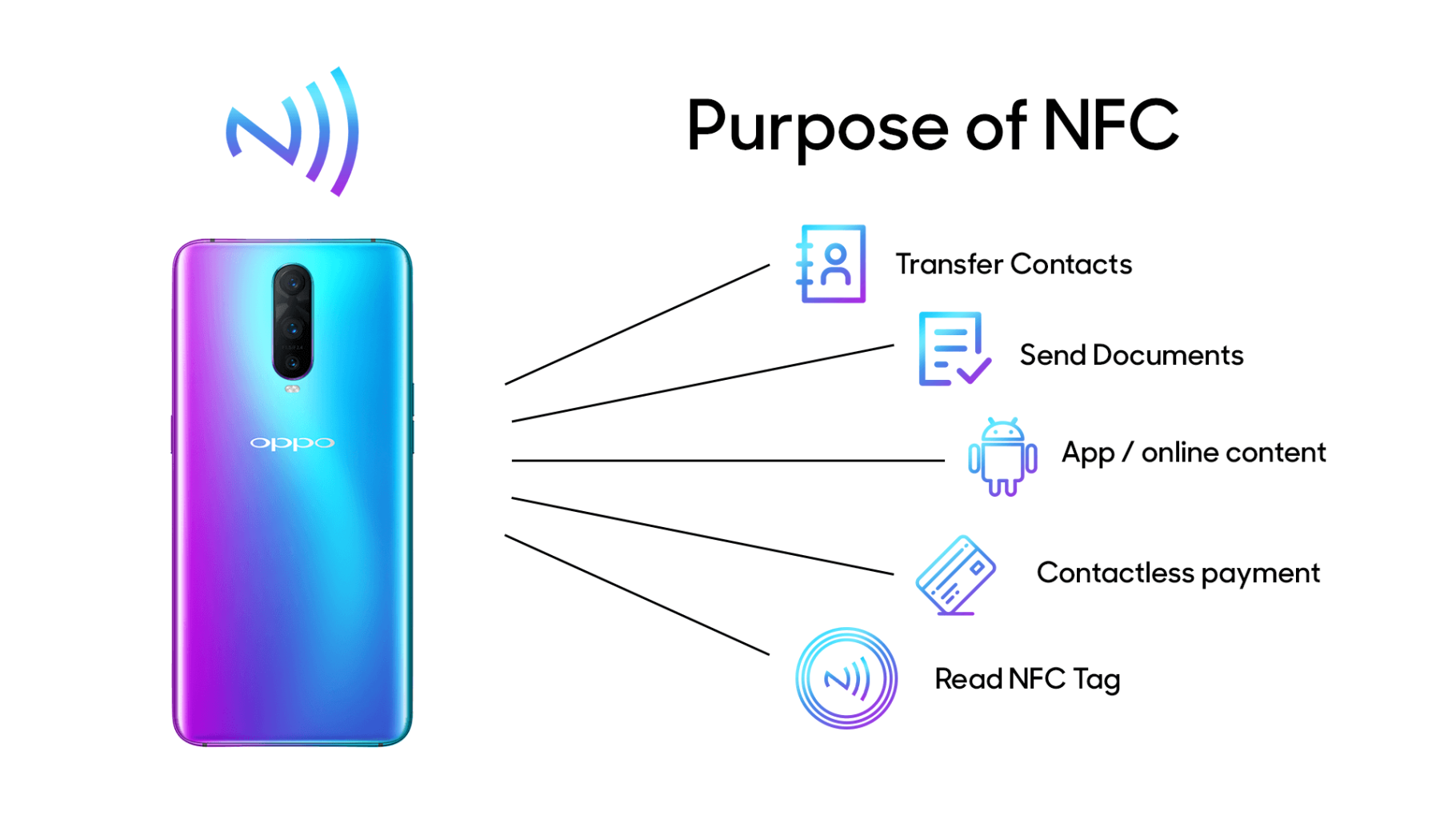
purpose of nfc explained

The 5 Most Common Triggers (And Why They’re Usually Harmless)

Before you assume the worst, let’s walk through what’s probably setting off your phone.

1. Your Own Credit or Debit Card

This is the #1 culprit. If your wallet is in the same pocket as your phone—or you’re holding both in one hand—your contactless payment card can trigger the notification.

Modern debit and credit cards contain NFC chips for tap-to-pay functionality. Your phone doesn’t know the difference between your card and a stranger’s NFC tag. It just detects the signal.

Quick fix: Separate your phone and wallet, or use an RFID-blocking sleeve for your cards.

2. Someone Else’s AirTag (Or Similar Tracker)

Apple’s AirTag and competing products like Tile use a combination of Bluetooth and NFC. When an AirTag is in “Lost Mode,” tapping it with your phone reveals the owner’s contact information.

If you’re in a crowded space—a coffee shop, train, or airport—you might accidentally come within range of someone’s lost item tracker attached to their luggage or keys.

What to do: If you see an AirTag notification, you can tap to view owner details. Apple has built-in anti-stalking protections that will alert you if an unknown AirTag seems to be traveling with you.

3. NFC Advertisements in Public Spaces

Here’s where things get interesting—and where you should start paying closer attention.

Many bus stops, retail displays, and event posters now include embedded NFC tags designed to trigger your phone when you walk by. These are legitimate marketing tools that can:

  • Open a website
  • Launch a promotional video
  • Trigger an App Clip (more on this below)

The technology is intentional. Brands embed these tags to create “phygital” experiences that bridge physical advertising with digital engagement.

The concern: You didn’t consent to this interaction. While most NFC advertisements are harmless, they represent a gray area in consumer privacy.

4. App Clips on iPhone

If you’re an iPhone user, you might see a small card pop up at the bottom of your screen instead of a standard notification. This is an App Clip—a lightweight mini-app that runs without requiring a full download.

Retailers, restaurants, and parking meters use App Clips to let you:

  • Order food without downloading their full app
  • Rent a scooter or bike
  • Pay for parking

Apple designed App Clips to be convenient, but they can feel intrusive if you didn’t expect them.

How to limit this: Go to Settings → Screen Time → Content & Privacy Restrictions → Allowed Apps and toggle off “App Clips” if you want to prevent automatic triggering.

5. Your Hotel Key Card or Work Badge

Access cards for hotels, offices, and gyms often use NFC or RFID technology. If you store these in your phone case or carry them loose in a pocket, they’ll occasionally trigger detection alerts.

Simple solution: Keep access cards in a separate compartment from your phone.

When “NFC Tag Detected” Becomes a Red Flag

Now let’s talk about the scenarios where you should be cautious.

The Real Risk: Unknown Links

Here’s what security experts want you to remember: Anyone can create an NFC tag.

A programmer can purchase blank NFC stickers for less than $1 each and encode them to open any URL. When your phone detects one of these tags, it might prompt you to visit a website you’ve never heard of.

This is where scammers operate.

A malicious tag could redirect you to:

  • A phishing site that mimics your bank
  • A page that attempts to install malware
  • A fake login screen designed to steal credentials

The good news? NFC requires extremely close proximity to work. A scammer would need to place a tag somewhere you’re likely to tap your phone—like on a payment terminal, ATM, or public advertisement—or get within inches of your device.

How to Protect Yourself

1. Never tap “Open” on unfamiliar links.

If your phone detects a tag and displays a URL you don’t recognize, dismiss the notification. Legitimate businesses will have branded, recognizable domains.

2. Verify before you trust.

If an NFC tag at a store or restaurant seems suspicious, ask a staff member. Scammers have been known to place fake NFC stickers over legitimate ones on payment terminals.

3. Disable NFC when you don’t need it (Android).

On Android devices, you have full control. Go to Settings → Connected Devices → Connection Preferences → NFC and toggle it off.

Unfortunately, iPhones don’t allow users to disable NFC entirely—it’s always active for features like Apple Pay.

4. Use Content Restrictions on iPhone.

While you can’t turn off NFC on an iPhone, you can limit what it does. Restricting App Clips (as mentioned above) reduces the surface area for unwanted interactions.

5. Watch for “too-good-to-be-true” offers.

An NFC tag promising a free gift card, discount code, or prize is a classic social engineering tactic. Treat it with the same skepticism you’d apply to a suspicious email.

Should You Turn Off NFC Completely?

Honestly? Probably not.

The convenience of NFC—contactless payments, quick pairing, smart home control—outweighs the relatively small risk of encountering a malicious tag. The technology’s 2-inch range makes large-scale attacks impractical.

But awareness matters. Now that you understand what triggers the “NFC Tag Detected” notification, you can make informed decisions about when to engage and when to ignore.

My professional advice: Keep NFC enabled, but treat every unknown tag like an unsolicited email. If you didn’t ask for it and don’t recognize it, don’t interact with it.

Quick Reference: NFC Detection Cheat Sheet

TriggerRisk LevelWhat to Do
Your own credit/debit cardNoneSeparate phone and wallet
AirTag or trackerLowCheck if it’s following you
Retail/transit NFC adLowIgnore or engage if interested
App Clip promptLowDisable in settings if unwanted
Unknown URL from public tagMedium-HighNever open unfamiliar links
Suspicious tag on ATM/terminalHighReport to location staff

The Bottom Line

“NFC Tag Detected” isn’t a warning—it’s an announcement. Your phone is telling you that something nearby is ready to communicate.

Most of the time, that “something” is your own credit card, a marketing tag you walked past, or a lost AirTag on someone’s luggage. Nothing sinister. Nothing to worry about.

But the same technology that makes contactless payments seamless also creates opportunities for bad actors. Stay curious, stay skeptical, and remember: if you didn’t initiate the interaction, you’re under no obligation to complete it.

Your phone detected a tag. What happens next is entirely up to you.


Have questions about NFC technology or want to explore how NFC tags can enhance your business operations? Explore our complete range of NFC products or reach out to our team for personalized guidance.

What is the NDEF format?

NDEF is a standardized data format that makes it possible for a smartphone to write or read on an NFC card or an NFC tag. The NDEF format is used to store URLs, text documents, or electronic business cards. NFC-enabled chips such as the MiFare® NTAG® or DesFire® may be configured together with NDEF. One or more so-called NDEF records could be saved on it, and everyone may have their endeavor.

Near Field Communication (NFC) shines in regards to peer-to-peer information exchange. As with any other information exchange, both devices need to agree on the best way to convey. Consider it in human terms. It is the same for almost any communication, even between NFC-enabled devices. The 2 devices need to agree upon a more standardized system of communicating.

What are Ndef messages in Ndef format?

NDEF messages offer a standardized technique to get a reader to speak using an NFC device. The NDEF message includes multiple documents, as revealed. You will NDEF format when working with standardized tags and proprietary tags. The NFC standard supports five label types, all of which encourage the identical NDEF message format. The header includes valuable information for your reader in the tags, like the record ID, duration, and kind.

Purpose of NDEF record

The NDEF record contains quite a great deal of info, which you want. The first eight info or messages include flags that specify how to translate the remainder of the record. Based on just how these flags are set, you may use different resources to discover precisely what the document needs to say for you. The simple way to make it through this undertaking would be to get a program to do everything for you, but the rest of this section offers you a handy summary.

How to Read Data on NFC Tag

It explains how to send and receive NFC information in NDEF messages’ shape and describes the Android frame APIs that support these attributes. Reading NDEF info from an NFC label is managed using the tag dispatch system, which examines discovered NFC tags, suitably categorizes the information and begins an application that’s considering the classified data. An application that wishes to deal with the scanned NFC label may announce a goal filter and ask to take care of the data.

The Android Beam™ attribute permits a device to push an NDEF message on a different device by tapping on the devices together. This interaction provides a much easier way to send info than other wireless technologies such as Bluetooth because using NFC, no manual device discovery or pairing is demanded. Android Beam can be obtained through a set of NFC APIs so that any program can transmit data between devices. The Contacts, Browser, and YouTube programs use Android Beam to discuss contacts, webpages, videos, and different devices by way of instance.

How are Ndef records used to store the data?

Different NDEF records could be saved within an NFC card or label. The amount of information that may be saved depends on the memory size of this processor, and it can vary from 48 bytes and 8 Kilobytes. It is accomplished with an NDEF message along with an NFC card.

Can you program a Mifare classic to NDEF format?

NFC tags such as Mifare Classic cards may be configured as NDEF tags and data written to them by a single NFC device. It is known and accessed by other NDEF compatible devices. Mifare Classic 1K and 4K cards may be configured as NFC Forum harmonious NDEF tags. However, they need to be organized in a particular way to achieve that. The requirements to create a Mifare Classic card”NFC Forum compliant” are clarified in the following App Notice from NXP.

While the Program Note above is your definitive source on the subject, these notes might also offer a quick overview of the key concepts involved in using Mifare Classic cards since NFC Forum harmonious’NDEF’ tags. To form a connection between the sector-based memory of a Mifare Classic card and the person NDEF files, the Mifare Application Directory arrangement is utilized. The MAD suggests which business comprises which NDEF record. The definitive source of advice on the Mifare Application Directory is your following program note.

What is NFC Ndef format?

Near-Field-Communication (NFC) is not new technology. With all the Covid 19, there’s been a spike in contactless NFC use, as seen with the recent trend of payment apps such as Google Pay and Apple Pay. This is possible by the QR codes. It’s come quite a ways.

Conclusion

All NDEF records have some kind. It is occasionally called Payload type, sometimes called Record kind, other times only kind. The kind name structure categorizes the kinds broadly to a couple of locations and lets you know how you can interpret the kind. There are just eight formal kind name formats of NDEF messages, but most of the work has done with only 3: Well-Known, MIME press, and External.

The Well-Known TNF comprises a range of valuable definitions for document types, such as text messages, URIs, Smart Posters, and the numerous carriers required for peer-reviewed handovers. The External TNF can be utilized for documents like the Android Program Record. As you saw from the Smart Poster situation in Composing Different Record Types, the payload of a Smart Poster document is itself an NDEF message.

I believe that this is redundant for many programs and that it is better to practice utilizing numerous documents in an NDEF message. There are several methods to reach the very same ends with NDEF messages. The way that message is obtained is based upon the operating procedure of the system that is getting it.

How to Program NFC Tags to Connect to Wi-Fi

Establishing a connection to Wi-Fi networks can sometimes be a tiresome task, particularly when faced with long & intricate passwords. Near Field Communication (NFC) technology provides a simple solution, enabling users to connect to Wi-Fi networks with a mere tap of their NFC-enabled devices on an NFC tag.

This extensive guide will walk you through the entire process of programming NFC tags for Wi-Fi connection, ensuring that it is effortlessly comprehensible and accessible to everyone.

Requirements

  1. An NFC-enabled smartphone or device.
  2. Blank, writable NFC tags (preferably NTAG213 or NTAG215 for compatibility and storage capacity).
  3. An NFC tag-writing app (installed on your smartphone or device).

Step-by-Step Guide

Step 1: Gather Wi-Fi Network Information

Initially, you must have all the essential information about the Wi-Fi network, including:

  • Network name (SSID)
  • Password (if applicable)
  • Security type (WPA2, WEP, or Open)

Ensure you have this information, as you will require it during the NFC tag programming process.

Step 2: Install an NFC Tag-Writing App

To program the NFC tag, you need to have an NFC tag-writing app installed on your NFC-enabled smartphone. There are numerous free & paid apps available for both Android & iOS platforms. Some popular options are:

Download and install your ideal application.

Step 3: Launch the NFC Tag-Writing App

Once you have successfully installed the NFC tag-writing app, open it on your smartphone or device. The app’s interface might vary slightly depending on the chosen app, but the general process should remain similar.

Step 4: Create a New Wi-Fi Record

Within the NFC tag-writing app, look for the option to create a new record or task. This is where you will input the Wi-Fi network information collected in Step 1. Select the Wi-Fi or Connect to Wi-Fi option (the phrasing may vary depending on the app) to create a new Wi-Fi record.

Step 5: Enter Wi-Fi Network Information

Now, enter the Wi-Fi network information gathered earlier:

  • In the SSID or Network Name field, input the network name.
  • In the Password or Key field, type the network password (if applicable).
  • For the Security or Encryption field, choose the appropriate security type (WPA2, WEP, or Open).

Double-check that all the information you’ve provided is accurate, then proceed.

Step 6: Save the Wi-Fi Record

Once you have entered all the necessary Wi-Fi network information, save the record in the app. This will prepare the data for writing onto the NFC tag.

Step 7: Prepare the NFC Tag for Writing

Now, it’s time to write the Wi-Fi record onto the NFC tag. Ensure that the NFC tag is blank and writable. If you are uncertain, most NFC tag-writing apps have a feature that allows you to verify if a tag is writable and erase any existing data.

Place the NFC tag on a flat surface, making certain that no metallic objects are nearby as they can interfere with the NFC signal.

Step 8: Write the Wi-Fi Record onto the NFC Tag

Within the NFC tag-writing app, locate the option to write or save the data onto the tag. This may be labeled as Write, Save, Write Tag, or similar wording.

After finding the write option, follow the app’s instructions for writing the data onto the NFC tag. This typically involves placing your smartphone or device in close proximity to the tag (usually within 1-2 cm) and waiting for the app to confirm the successful writing of data.

Step 9: Test the NFC Tag

After writing the Wi-Fi record onto the NFC tag, it is crucial to test its functionality to ensure that it works correctly. To do this:

  1. Disable Wi-Fi on your smartphone or device.
  2. Ensure that NFC is enabled on your device.
  3. Tap your device on the programmed NFC tag.
  4. Your device should automatically connect to the Wi-Fi network without manual input of the password.

If the NFC tag does not perform as expected, double-check the Wi-Fi network information entered in the app and attempt to write the data onto the tag again.

Step 10: Secure the NFC Tag (Optional)

If you desire to prevent others from modifying the Wi-Fi information on the NFC tag, you can set a password or lock the tag. Most NFC tag-writing apps offer this functionality built-in. It is critical to note that locking an NFC tag is a permanent action, & you will be unable to modify the tag’s contents once it is locked.

To lock the NFC tag, follow the instructions provided by your specific NFC tag-writing app. Typically, this involves selecting the programmed Wi-Fi record, choosing a Lock or Protect option, and confirming your decision.

Step 11: Place the NFC Tag in a Convenient Location

Now that your NFC tag is programmed and tested position it in a convenient location where users can effortlessly access it with their NFC-enabled devices.

Step 12: Inform Users/Friends About the NFC Tag

You should inform users about the availability of the NFC tag for connecting to the Wi-Fi network. You can accomplish this through signage, verbal communication, or written instructions provided to guests or employees.

By following these steps, you have successfully programmed an NFC tag to connect to Wi-Fi, simplifying the process for users & eliminating the need for manual input of network information.

Overall, NFC tags are convenient and user-friendly to connect to Wi-Fi networks by simply tapping an NFC-enabled device. If you follow this guide to the letter, you can effortlessly program NFC tags to establish Wi-Fi connections. For more information about the uses of NFC, click here: Nfc Tags Uses.

This will enhance accessibility for users and minimize the necessity for manually entering network details. With NFC technology gaining more prevalence, now is an ideal time to embrace this seamless approach to Wi-Fi connectivity.

Unlock the Power of NFC on Your iPhone: A Simple Guide

Hey there, iPhone users! Ever wondered how to utilize the cool NFC technology on your Iphone? Near Field Communication (NFC) allows you to make contactless payments, share data, and even unlock your phone with just a tap. It’s super convenient, but how to enable it can feel tricky if you don’t know where to start. Next, we’ll walk you through enabling NFC on your iPhone, using it like a pro, and troubleshooting any glitches. Let’s get it together and get your iPhone ready for NFC in no time!

What Is NFC and Why Should You Care?

NFC, or Near Field Communication, is a short-range wireless tech that lets your iPhone talk to other devices, like payment terminals or NFC tags, when they’re just a few centimeters apart. Think Apple Pay at your favorite coffee shop or tapping your phone to share a contact. It’s built into every iPhone since the iPhone 6, so chances are, your device is ready to roll. Why’s it awesome? It’s fast, secure, and makes life easier—whether you’re paying, pairing devices, or automating tasks with NFC tags.

Is NFC Automatically Enabled on iPhones?

Good news: NFC is usually enabled by default on iPhones for core features like Apple Pay. Since iOS 11, Apple’s made it so apps can use NFC for more than just payments, like reading tags or sharing data, without you needing to flip a switch. However, some features, like using third-party apps or specific NFC tags, might need a bit of setup. Don’t worry—it’s not rocket science, and we’ll break it down step-by-step.

Step-by-Step: How to Enable NFC on Your iPhone

Let’s get to the fun part—setting up NFC! Here’s how to make sure it’s ready to go:

1. Check Your iPhone Model

First things first, confirm your iPhone supports NFC. If you’ve got an iPhone 6 or newer (including SE models), you’re good. Older models like the iPhone 5 don’t have NFC hardware, so no luck there. Check your model in Settings > General > About.

2. Set Up Apple Pay for Contactless Payments

Apple Pay is the most common way to use NFC. Here’s how to get it rolling:

  • Open the Wallet app.
  • Tap the + icon to add a card.
  • Follow the prompts to scan your credit or debit card or enter details manually.
  • Verify with your bank (they might send a code via text or email).
    Once set up, Apple Pay uses NFC automatically when you hold your iPhone near a contactless reader. Double-press the side button (or Home button on older models) to activate it.

3. Enable NFC for Third-Party Apps

Since iOS 13, iPhones can read NFC tags without a dedicated app in some cases, thanks to the Core NFC framework. For third-party apps that use NFC (like tag readers or smart home apps):

  • Download an NFC-compatible app from the App Store (e.g., NFC Tools or Shortcut).
  • Open the app and follow its instructions—most will prompt you to hold your iPhone near an NFC tag.
  • No manual “NFC toggle” is needed; iOS handles it in the background.

4. Ensure Background Tag Reading Is On

For iPhones XS and newer, you can read NFC tags without opening an app (called Background Tag Reading). To make sure it’s active:

  • Go to Settings > Control Center.
  • Add the NFC Tag Reader to your Control Center if you want quick access.
  • When near an NFC tag, your iPhone should detect it automatically and show a notification.

Using NFC Like a Pro

Now that NFC’s enabled, here’s how to make the most of it:

  • Apple Pay: Tap your iPhone at checkout for quick, secure payments. It’s accepted at most major retailers like Starbucks, Target, or grocery stores.
  • NFC Tags: Program tags to automate tasks—like turning on Wi-Fi when you get home or sharing your contact info. You’ll need an app like Shortcuts or NFC Tools to write to tags.
  • Pairing Devices: NFC can pair Bluetooth devices (like speakers or headphones) with a single tap.
  • Public Transit: In cities like Tokyo or London, use your iPhone with Apple Pay for contactless transit payments.

Troubleshooting NFC Issues

Running into problems? Here’s how to fix common NFC hiccups:

  • NFC Not Working with Apple Pay: Double-check that your card is verified in the Wallet app. Ensure you’re holding the phone close (within 2–4 cm) to the reader. If it still fails, restart your iPhone or contact your bank.
  • Can’t Read NFC Tags: Make sure you’re using a compatible app and holding the top of your iPhone (where the NFC chip is) near the tag. If it’s an older iPhone (pre-XS), you may need to open the app first.
  • Interference: Metal cases or nearby electronics can mess with NFC. Try removing your case or moving to a less crowded spot.
  • Software Glitches: Update to the latest iOS version via Settings > General > Software Update. A quick restart can also clear up minor bugs.

NFC Security: Is It Safe?

You might be wondering, “Is NFC secure?” Totally fair! Apple’s got your back with some serious security measures:

  • Encryption: NFC transactions, like Apple Pay, use tokenized data, so your actual card details aren’t shared.
  • Authentication: Payments require Face ID, Touch ID, or your passcode.
  • Short Range: NFC only works within a few centimeters, so it’s tough for someone to sneakily intercept your signal.
    Still, stick to trusted apps and retailers to keep things extra safe.

Cool NFC Features You Might Not Know About

NFC isn’t just for payments. Here are some fun ways to use it:

  • Smart Home Automation: Program NFC tags to control lights, thermostats, or door locks via apps like HomeKit.
  • Share Wi-Fi Credentials: Create an NFC tag that instantly shares your Wi-Fi password with guests.
  • Event Check-Ins: Some events use NFC for quick ticket scanning or check-ins.
  • Digital Business Cards: Share your contact info by tapping your phone on someone else’s NFC-enabled device.

FAQs About NFC on iPhone

Q: Do I need to turn NFC on manually?
A: Nope! NFC is always on for Apple Pay and background tag reading (on XS and newer). Just set up your apps or Wallet, and you’re good.

Q: Can I use NFC with a phone case?
A: Most cases are fine, but thick or metal ones might interfere. Try removing the case if you’re having issues.

Q: Which iPhones support NFC tag reading?
A: iPhone 7 and newer support tag reading, with XS and later offering background reading.

Q: Is NFC draining my battery?
A: NFC uses minimal power since it’s only active during a tap. No need to worry about battery drain.

Wrapping It Up

NFC on your iPhone is like a little superpower—whether you’re tapping to pay, automating tasks, or sharing info, it’s a game-changer. Setting it up is a breeze, and with a few tweaks, you can troubleshoot any issues and use it like a pro. So, grab your iPhone, set up Apple Pay, download an NFC app, and start exploring what this tech

Introducing NFC Business Cards for Your Business

Are you looking for a new way to make exchanging contact information easier, faster, and more efficient? Look no further than NFC business cards. Near-field communication (NFC) technology is becoming increasingly popular in the business world as a way to quickly share data without the need for cumbersome cords or cables. Let’s explore what NFC business cards are and why they are such an invaluable tool for today’s businesses.

What Are NFC Business Cards?

NFC business cards use near-field communication technology to make it easy to exchange information between two devices. All you need is an NFC-enabled device, such as a smartphone or tablet, and an NFC-enabled card. To exchange information, simply tap your card against the other NFC-enabled device, and voila! The data on the card will be transferred almost instantly.

Benefits of Using NFC Business Cards

For businesses that rely heavily on networking and exchanging contact information with colleagues, customers, and partners, NFC business cards are a must-have. They provide several key advantages including:

• Ease of Use – Exchange contact information with just one tap of your card against another device without having to fumble with cords or cables.

• Portability – Carry your cards anywhere without having to worry about them taking up too much space in your bag or pocket.

• Durability – These cards are designed to withstand wear and tear from everyday use. And since they’re waterproof, you don’t have to worry about them getting damaged if they get wet.

• Cost Effective – With no setup costs or monthly fees, these cards can be used over and over again at minimal cost compared to other forms of digital data transfer.

Conclusion:

NFC business cards offer many advantages over traditional methods of exchanging contact information such as emailing contacts lists or using USB sticks to transfer data directly from one device to another. For system integrators, purchasing personnel, and corporate executives who regularly exchange contact information with colleagues and customers alike, these cards offer a convenient way to quickly share pertinent data without having to worry about cords or cables getting tangled or lost in the shuffle. If your business hasn’t yet adopted this technology, now might be the time! It could help take your networking efforts up a notch—and save you time in the process! Ultimately, if you want an easier way to exchange data between devices without dealing with cords or cables then consider investing in some NFC business cards today!

Ask For A Quick Quote

Your inquiry will be replied within 24 hours! Please pay attention to the email with the suffix “@tag-rfid.com”. If not received, please check your spam email.