
NFC Tags

Take a break and read all about it

29 Cool Uses for NFC Tags Guide

NFC, or Near Field Communication, is a short-range wireless communication technology that’s designed to let you exchange data with other devices. NFC tags are small stickers that allow you to store data on them and then use that data in various ways. They’re useful for tasks like automating your home, controlling connected devices, and automating tasks based on location. You can also use them to interact with smart posters and other IoT devices without having to install any apps or additional software on your phone.

1. Automate Sleep Mode With NFC

You can use NFC tags to automate your devices. For example, if you want to keep your computer in sleep mode when you’re not around, then all you have to do is set up an NFC tag that wakes up the device when placed near it. Another common use case would be having a tag automatically turn off or on lights in your home when certain conditions are met (e.g., if it’s dark outside).

2. Set Kitchen Timers

Timers are a staple in every household, so why not use NFC tags to set them? Just place an NFC tag on your kitchen counter and when you want to set the timer, just tap it with your phone. The same thing can be done for bathroom and bedroom timers as well.

3. Run Siri Shortcuts on iPhone

You can also run Siri Shortcuts on your iPhone using NFC tags.

To set up a Siri Shortcut to run with an NFC tag, open up the Settings app and go to “Siri & Search” and select “Shortcuts.” From there, simply tap on the plus sign at the bottom of your screen to add a new Siri Shortcut (or use an existing one). You’ll be prompted to choose an existing shortcut or create one from scratch — we recommend choosing “Create New Siri Shorcut” here so that you can specify exactly what it does for you.

Once you’ve selected this option, enter whatever command or phrase you’d like it to trigger when activated by tapping on “Add Action.” This could be something as simple as telling Siri “I’m done” or even saying something more complex like “I’m going home.” Once done setting this up, tap on ‘Done’ at the top right corner of your screen then give yourself some time before trying out your new shortcut just in case there were any bugs or quirks during setup!

4. Use NFC to Connect to Bluetooth Device

  • NFC tags can be used to connect Bluetooth devices
  • connect your Bluetooth device to your phone by tapping the tag on your phone

5. Pay Bills Using NFC

NFC tags can be used to pay bills, as well! If you’re looking for a secure way to pay for things without having to carry around cash, then an NFC tag is the answer. That’s right: it’s possible to use your phone as a wallet and keep all of your credit cards on an NFC tag instead.

Here’s how it works:

  • Download any payment app that supports Android Pay or Apple Pay (Google Wallet will also work).
  • Create an account with the service that allows you to pay by tapping on NFC readers, such as Bank of America or Chase Mobile Banking (Chase doesn’t currently offer this feature).

6. Track Your Car mileage

  • Track your car’s mileage
  • Track fuel consumption
  • Track speed, location, and engine temperature

7. Use NFC in Your Car

  • Use NFC in Your Car

NFC tags are also used to control the car’s entertainment system. For example, an NFC tag placed on the driver’s seat can be used to unlock the doors and start up your vehicle when you approach it, while an NFC tag on your keychain can automate these features as well. You can also use an app to remotely manage some of these tasks if you have an Android device or iPhone that supports Apple CarPlay or Android Auto, respectively. With this app, you could change music stations and adjust the volume without ever having to take your hands off the wheel!

8. Use NFC to Set a Smart Alarm

  • You can use NFC tags to set a smart alarm.
  • Simply place your phone or watch near the tag and presto! Your alarm will go off at the designated time.

9. Emergency Call/Text

In the event you ever find yourself in a situation that requires an emergency call or text, you can use your NFC tag to make one. If you have an Android device with NFC, go to Settings > Security > Screen lock & passwords. Under Smart Lock options, select Trusted Places and add your home address (or any place that is safe). Once this is done, simply hold down the back of your phone on the tag until it vibrates and unlocks your phone. You should see “Emergency call” or “Send SMS” appear on the screen—tap either option to place a call or send a message without having to enter a passcode or swipe away from sleep mode first.

10. Use NFC To Call Mom

You can use NFC to call your mom. Simply tap the tag and say “call mom” or “text mom.” As soon as you do, she’ll get an alert on her phone informing her that you’re trying to reach her.

You can also use NFC tags with Google Voice Actions to send emails via voice command. Just tap the tag, say “send an email” and follow the prompts.

11. Foursquare checking

  • Use the NFC tag to check into foursquare.
  • Use the NFC tag to check into foursquare without opening the app.
  • Use the NFC tag to check into foursquare without unlocking your phone.

12. Leave Secret Message

It’s often the little things that can make a big difference. With NFC tags, you can leave secret messages for friends, family members, and others. These are perfect for leaving a note for someone or something important to remember in case of an emergency.

You can also use this technology to send a secret message by placing it under your car’s windshield wiper blade when parked at work so that anyone who finds it will know how to contact you if there’s an emergency at home.

13. Organize junk with NFC tags

NFC tags can be used to keep track of your belongings. For example, you might want to use NFC tags on all the important items such as keys and wallets. Then, you can use a smartphone app to scan the tags and know where each of these things is at any given moment.

If it’s not safe enough for you to leave an expensive item behind when going out for a run or a jog around the neighborhood, then consider getting an NFC tag that will allow you to know where it is in case someone tries stealing it from someplace where they could easily get their hands on it.

If your kids have toys and other things which might get lost easily at school or play yard during recess time then tagging them with NFC stickers will help you find them quickly in case they go missing while playing outside

14. Connect/Disconnect Wi-Fi

If you use WiFi on your Android device and want to save battery life, an NFC tag can be used to turn off your Wi-Fi when not in use. Simply program your phone to read the tag whenever it’s placed next to it. This is also a good way of keeping people from being able to access your network without permission.

15. Share Wi-Fi without sharing the Password

NFC tags can be used to share Wi-Fi passwords. NFC tags can be used to share wifi passwords with friends and family members. NFC tags can be used to share wifi passwords with guests. NFC tags can be used to share wifi passwords with your neighbors.

16. Start Tasker task

Tasker is a powerful Android automation app that can be used to perform many useful tasks. For example, it can start a task based on NFC tags, so you can set up your phone to automatically launch an app or even open a URL when you tap a tag.

To create such a task, go to the Tasker action category Misc and choose Run Task. Enter the name of your task (for example: Start Workout) in the field below and select it from the drop-down menu below that field. Then head over to Event -> Plugin -> NFC Tag Reader -> Read Tag (or just click here). If your device has multiple reader modules installed, make sure that one is configured as an “NFC reader” by going into its settings and tapping Select Reader Mode at least once (this may not work if there are too many apps running in the background). Now tap Add Action->Run Shell->Run Script->Scripting Helpers – AutoInput

17. Unlock your door

NFC tags can be used to unlock doors.

If you have an NFC tag, you can use it to unlock your door. You just need to program the tag with your home address and set up a corresponding Autolock feature on the app. When you get home, hold the tag over the lock for 10 seconds, and voila! The door will open automatically for you!

18. Start PC With Your Smartphone

NFC can also be used to start your PC with your smartphone. Just place an NFC tag on your desk and connect it to a link that opens the default web browser on your computer. Your PC will start up and open its browser when you tap the tag.

19. NFC-enabled loyalty cards

  • NFC-enabled loyalty cards

Loyalty programs are a great way to incentivize repeat purchases and reward your most loyal customers. But if you’re not using NFC technology, then how do you actually engage with your customers? You can use an NFC-enabled loyalty card to show that they are elected members of a rewards program, which is something many customers will appreciate (and maybe even brag about). If someone asks where they can find an NFC-friendly store or restaurant near them, simply tell them all they need to do is look for the sticker on the door or countertop!

20. Use NFC to Control Your Surrounding

  • Use NFC to Control Your Surrounding

NFC to control your surrounding.

This is one of the most interesting ways you can use NFC tags and it’s not just limited to Android smartphones. You can do this with any NFC-enabled smartphone or tablet, including iPhones! For example, if your living room has an NFC-enabled light switch and dimmer then you could place a tag on the wall next to it that will launch Siri and ask her to turn on or off the lights for you!

Another cool idea would be if there was a button near your bedside table which when pressed would turn off all electronics in your bedroom like TVs, computers, etc. You could even set it up so that when someone presses this button during work hours at night then all of their computers shut themselves down automatically!

21. NFC in Smart posters

You can also use NFC tags to advertise services, products, and events. For example, you can use an NFC tag to advertise the name of your business on a poster. This is especially effective if the poster is placed near the entrance of a place where people tend to gather (e.g., coffee shops).

Here’s how it works:

  • A customer walks up to an advertisement with an NFC tag on it (e.g., at Starbucks)
  • The customer holds their phone over the tag and selects “Scan” from their phone’s menu options, which activates their mobile device’s NFC reader
  • The phone reads the data stored in the tag and displays it onscreen so that they can view it (or hear it through their headphones).

22. NFC in Smart Cards

An NFC smart card is a contactless IC card that contains a chip and antenna for short-range radio frequency communication. It uses the same principles as contactless smart cards, but it doesn’t require physical contact between the card and the reader.

NFC smart cards can be used for payment, identity verification, access control, and other applications.

23、Smart Nail

  • Smart Nail

If you’ve ever lost your keys or had a panic attack because you couldn’t find them, then this is the perfect solution for you. The smart nail is a special type of nail polish that uses an NFC tag to help keep track of your keys. The best part? It can also be used with other items like opening doors and starting cars! If there’s one thing we all love, it’s convenience.

24、Smart Clothes

  • Use NFC tags to control your smart clothes.
  • Use NFC tags to make your smart clothes more intelligent.

25、Wedding Invitation

NFC wedding invitations are a great way to make your guests feel more involved in the wedding. The tags can be embedded in the invitation itself, or they can be attached to it somehow. Either way, you can use them to share information between the bride and groom, audio messages for guests, or even directions to the venue.

Of course, if you want some more ideas on how you can use NFC tags at your own wedding then check out this infographic:

26、Electronic Skin -Digital Tattoos

A team of researchers has developed a new way to apply NFC tags to the human body. They’ve created what they call “electronic skin,” which uses small, flexible, and transparent NFC tags attached to your skin that can be used for authentication, payment, and health monitoring.

Electronic skin is made from nanotechnology that has been applied to an ultrathin film of polyethylene terephthalate (PET). It’s similar in appearance to a temporary tattoo without pigment; however electronic skin can be applied over large areas of the body such as arms or legs without losing its functionality.

27. NFC passport

The NFC Passport is a secure and convenient way of traveling with your passport. It’s a small NFC device that attaches to the back cover of your passport, so you can use it to access information about yourself whenever you need it.

How does it work?

You simply tap your phone against an NFC-enabled reader and the relevant data will appear on the screen: name, DOB, nationality, photo, etc.

28. NFC Key Fobs

An NFC key fob is a small tag that can be carried around in your pocket or purse. You can use an NFC key fob to unlock doors, start cars, or even pay for things at stores with it.

Because these tags are so small and portable, they’re ideal for storing information such as passwords and personal identification numbers (PINs). This makes them useful if you find yourself in a situation where you need access to something but don’t have physical access to your smartphone (for example, if it’s been stolen). You could also use an NFC tag as a digital wallet: simply store credit card information on the tag and swipe your wrist over payment terminals at participating retailers!

29. Anti-face brand protection

  • NFC tags can be used to protect your brand.
  • NFC tags can be used to prevent counterfeiting.
  • NFC tags can be used to protect intellectual property.
  • NFC tags can be used to protect personal information.
  • NFC tags can be used to prevent fraud

Conclusion

You can use NFC tags for a lot of different things, and each one will be just as exciting as the last. You can use them to automate your home, control your smartphone with a tap of a tag, or even start your car with an NFC-enabled watch. If you’re interested in learning more about the uses of NFC tags, then check out our blog post on how to make an emergency call using an NFC tag!
Related Articles

“NFC Tag Detected” Keeps Popping Up—Should You Be Worried?

You’re waiting at a bus stop, scrolling through your phone, when suddenly a notification appears: NFC Tag Detected.” You didn’t tap anything. You didn’t ask for this. And now you’re wondering if someone just tried to hack your phone.

Take a breath. You’re not alone—and in most cases, you’re perfectly fine.

That mysterious notification is simply your smartphone doing its job. But understanding why it appears—and when you should actually be concerned—can save you from both unnecessary panic and genuine security risks.

What Does “NFC Tag Detected” Actually Mean?

NFC stands for Near Field Communication, a wireless technology that allows two devices to exchange data when they’re extremely close together—typically within 2 inches (about 5 centimeters) of each other.

When your phone displays “NFC Tag Detected,” it means something with an embedded NFC chip came within that razor-thin detection range. Your phone’s antenna picked up the signal and is alerting you.

Think of it like a digital handshake. Your phone is saying: “Hey, something nearby wants to communicate. Want to respond?”

The technology operates at 13.56 MHz and has become an international standard (ISO 18092). It’s the same tech that powers:

  • Contactless payments (Apple Pay, Google Pay)
  • Transit cards and building access badges
  • Smart product tags in retail stores
  • Digital business cards and marketing materials
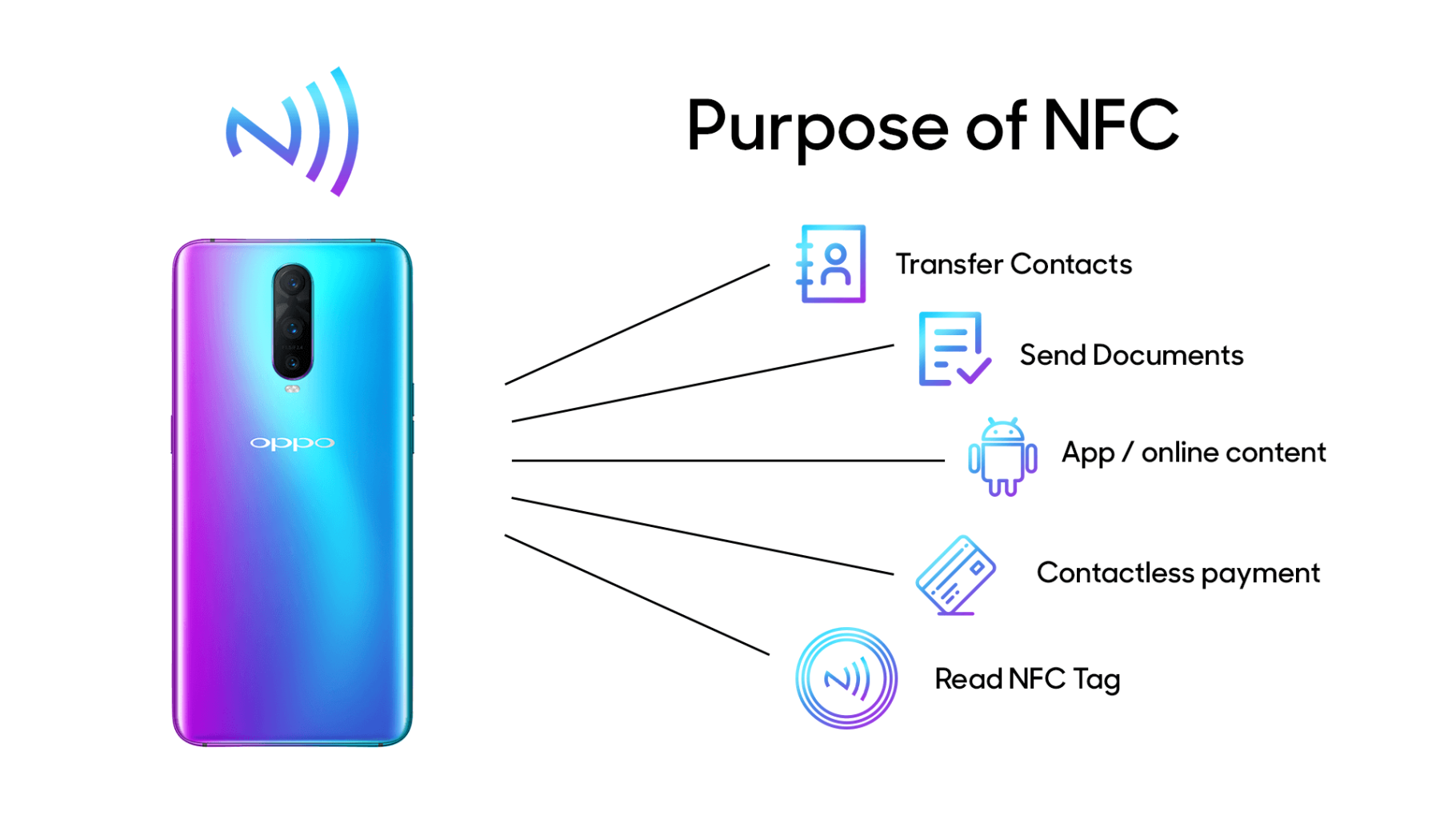
purpose of nfc explained

The 5 Most Common Triggers (And Why They’re Usually Harmless)

Before you assume the worst, let’s walk through what’s probably setting off your phone.

1. Your Own Credit or Debit Card

This is the #1 culprit. If your wallet is in the same pocket as your phone—or you’re holding both in one hand—your contactless payment card can trigger the notification.

Modern debit and credit cards contain NFC chips for tap-to-pay functionality. Your phone doesn’t know the difference between your card and a stranger’s NFC tag. It just detects the signal.

Quick fix: Separate your phone and wallet, or use an RFID-blocking sleeve for your cards.

2. Someone Else’s AirTag (Or Similar Tracker)

Apple’s AirTag and competing products like Tile use a combination of Bluetooth and NFC. When an AirTag is in “Lost Mode,” tapping it with your phone reveals the owner’s contact information.

If you’re in a crowded space—a coffee shop, train, or airport—you might accidentally come within range of someone’s lost item tracker attached to their luggage or keys.

What to do: If you see an AirTag notification, you can tap to view owner details. Apple has built-in anti-stalking protections that will alert you if an unknown AirTag seems to be traveling with you.

3. NFC Advertisements in Public Spaces

Here’s where things get interesting—and where you should start paying closer attention.

Many bus stops, retail displays, and event posters now include embedded NFC tags designed to trigger your phone when you walk by. These are legitimate marketing tools that can:

  • Open a website
  • Launch a promotional video
  • Trigger an App Clip (more on this below)

The technology is intentional. Brands embed these tags to create “phygital” experiences that bridge physical advertising with digital engagement.

The concern: You didn’t consent to this interaction. While most NFC advertisements are harmless, they represent a gray area in consumer privacy.

4. App Clips on iPhone

If you’re an iPhone user, you might see a small card pop up at the bottom of your screen instead of a standard notification. This is an App Clip—a lightweight mini-app that runs without requiring a full download.

Retailers, restaurants, and parking meters use App Clips to let you:

  • Order food without downloading their full app
  • Rent a scooter or bike
  • Pay for parking

Apple designed App Clips to be convenient, but they can feel intrusive if you didn’t expect them.

How to limit this: Go to Settings → Screen Time → Content & Privacy Restrictions → Allowed Apps and toggle off “App Clips” if you want to prevent automatic triggering.

5. Your Hotel Key Card or Work Badge

Access cards for hotels, offices, and gyms often use NFC or RFID technology. If you store these in your phone case or carry them loose in a pocket, they’ll occasionally trigger detection alerts.

Simple solution: Keep access cards in a separate compartment from your phone.

When “NFC Tag Detected” Becomes a Red Flag

Now let’s talk about the scenarios where you should be cautious.

The Real Risk: Unknown Links

Here’s what security experts want you to remember: Anyone can create an NFC tag.

A programmer can purchase blank NFC stickers for less than $1 each and encode them to open any URL. When your phone detects one of these tags, it might prompt you to visit a website you’ve never heard of.

This is where scammers operate.

A malicious tag could redirect you to:

  • A phishing site that mimics your bank
  • A page that attempts to install malware
  • A fake login screen designed to steal credentials

The good news? NFC requires extremely close proximity to work. A scammer would need to place a tag somewhere you’re likely to tap your phone—like on a payment terminal, ATM, or public advertisement—or get within inches of your device.

How to Protect Yourself

1. Never tap “Open” on unfamiliar links.

If your phone detects a tag and displays a URL you don’t recognize, dismiss the notification. Legitimate businesses will have branded, recognizable domains.

2. Verify before you trust.

If an NFC tag at a store or restaurant seems suspicious, ask a staff member. Scammers have been known to place fake NFC stickers over legitimate ones on payment terminals.

3. Disable NFC when you don’t need it (Android).

On Android devices, you have full control. Go to Settings → Connected Devices → Connection Preferences → NFC and toggle it off.

Unfortunately, iPhones don’t allow users to disable NFC entirely—it’s always active for features like Apple Pay.

4. Use Content Restrictions on iPhone.

While you can’t turn off NFC on an iPhone, you can limit what it does. Restricting App Clips (as mentioned above) reduces the surface area for unwanted interactions.

5. Watch for “too-good-to-be-true” offers.

An NFC tag promising a free gift card, discount code, or prize is a classic social engineering tactic. Treat it with the same skepticism you’d apply to a suspicious email.

Should You Turn Off NFC Completely?

Honestly? Probably not.

The convenience of NFC—contactless payments, quick pairing, smart home control—outweighs the relatively small risk of encountering a malicious tag. The technology’s 2-inch range makes large-scale attacks impractical.

But awareness matters. Now that you understand what triggers the “NFC Tag Detected” notification, you can make informed decisions about when to engage and when to ignore.

My professional advice: Keep NFC enabled, but treat every unknown tag like an unsolicited email. If you didn’t ask for it and don’t recognize it, don’t interact with it.

Quick Reference: NFC Detection Cheat Sheet

TriggerRisk LevelWhat to Do
Your own credit/debit cardNoneSeparate phone and wallet
AirTag or trackerLowCheck if it’s following you
Retail/transit NFC adLowIgnore or engage if interested
App Clip promptLowDisable in settings if unwanted
Unknown URL from public tagMedium-HighNever open unfamiliar links
Suspicious tag on ATM/terminalHighReport to location staff

The Bottom Line

“NFC Tag Detected” isn’t a warning—it’s an announcement. Your phone is telling you that something nearby is ready to communicate.

Most of the time, that “something” is your own credit card, a marketing tag you walked past, or a lost AirTag on someone’s luggage. Nothing sinister. Nothing to worry about.

But the same technology that makes contactless payments seamless also creates opportunities for bad actors. Stay curious, stay skeptical, and remember: if you didn’t initiate the interaction, you’re under no obligation to complete it.

Your phone detected a tag. What happens next is entirely up to you.


Have questions about NFC technology or want to explore how NFC tags can enhance your business operations? Explore our complete range of NFC products or reach out to our team for personalized guidance.

How to Program NFC Tags to Connect to Wi-Fi

Establishing a connection to Wi-Fi networks can sometimes be a tiresome task, particularly when faced with long & intricate passwords. Near Field Communication (NFC) technology provides a simple solution, enabling users to connect to Wi-Fi networks with a mere tap of their NFC-enabled devices on an NFC tag.

This extensive guide will walk you through the entire process of programming NFC tags for Wi-Fi connection, ensuring that it is effortlessly comprehensible and accessible to everyone.

Requirements

  1. An NFC-enabled smartphone or device.
  2. Blank, writable NFC tags (preferably NTAG213 or NTAG215 for compatibility and storage capacity).
  3. An NFC tag-writing app (installed on your smartphone or device).

Step-by-Step Guide

Step 1: Gather Wi-Fi Network Information

Initially, you must have all the essential information about the Wi-Fi network, including:

  • Network name (SSID)
  • Password (if applicable)
  • Security type (WPA2, WEP, or Open)

Ensure you have this information, as you will require it during the NFC tag programming process.

Step 2: Install an NFC Tag-Writing App

To program the NFC tag, you need to have an NFC tag-writing app installed on your NFC-enabled smartphone. There are numerous free & paid apps available for both Android & iOS platforms. Some popular options are:

Download and install your ideal application.

Step 3: Launch the NFC Tag-Writing App

Once you have successfully installed the NFC tag-writing app, open it on your smartphone or device. The app’s interface might vary slightly depending on the chosen app, but the general process should remain similar.

Step 4: Create a New Wi-Fi Record

Within the NFC tag-writing app, look for the option to create a new record or task. This is where you will input the Wi-Fi network information collected in Step 1. Select the Wi-Fi or Connect to Wi-Fi option (the phrasing may vary depending on the app) to create a new Wi-Fi record.

Step 5: Enter Wi-Fi Network Information

Now, enter the Wi-Fi network information gathered earlier:

  • In the SSID or Network Name field, input the network name.
  • In the Password or Key field, type the network password (if applicable).
  • For the Security or Encryption field, choose the appropriate security type (WPA2, WEP, or Open).

Double-check that all the information you’ve provided is accurate, then proceed.

Step 6: Save the Wi-Fi Record

Once you have entered all the necessary Wi-Fi network information, save the record in the app. This will prepare the data for writing onto the NFC tag.

Step 7: Prepare the NFC Tag for Writing

Now, it’s time to write the Wi-Fi record onto the NFC tag. Ensure that the NFC tag is blank and writable. If you are uncertain, most NFC tag-writing apps have a feature that allows you to verify if a tag is writable and erase any existing data.

Place the NFC tag on a flat surface, making certain that no metallic objects are nearby as they can interfere with the NFC signal.

Step 8: Write the Wi-Fi Record onto the NFC Tag

Within the NFC tag-writing app, locate the option to write or save the data onto the tag. This may be labeled as Write, Save, Write Tag, or similar wording.

After finding the write option, follow the app’s instructions for writing the data onto the NFC tag. This typically involves placing your smartphone or device in close proximity to the tag (usually within 1-2 cm) and waiting for the app to confirm the successful writing of data.

Step 9: Test the NFC Tag

After writing the Wi-Fi record onto the NFC tag, it is crucial to test its functionality to ensure that it works correctly. To do this:

  1. Disable Wi-Fi on your smartphone or device.
  2. Ensure that NFC is enabled on your device.
  3. Tap your device on the programmed NFC tag.
  4. Your device should automatically connect to the Wi-Fi network without manual input of the password.

If the NFC tag does not perform as expected, double-check the Wi-Fi network information entered in the app and attempt to write the data onto the tag again.

Step 10: Secure the NFC Tag (Optional)

If you desire to prevent others from modifying the Wi-Fi information on the NFC tag, you can set a password or lock the tag. Most NFC tag-writing apps offer this functionality built-in. It is critical to note that locking an NFC tag is a permanent action, & you will be unable to modify the tag’s contents once it is locked.

To lock the NFC tag, follow the instructions provided by your specific NFC tag-writing app. Typically, this involves selecting the programmed Wi-Fi record, choosing a Lock or Protect option, and confirming your decision.

Step 11: Place the NFC Tag in a Convenient Location

Now that your NFC tag is programmed and tested position it in a convenient location where users can effortlessly access it with their NFC-enabled devices.

Step 12: Inform Users/Friends About the NFC Tag

You should inform users about the availability of the NFC tag for connecting to the Wi-Fi network. You can accomplish this through signage, verbal communication, or written instructions provided to guests or employees.

By following these steps, you have successfully programmed an NFC tag to connect to Wi-Fi, simplifying the process for users & eliminating the need for manual input of network information.

Overall, NFC tags are convenient and user-friendly to connect to Wi-Fi networks by simply tapping an NFC-enabled device. If you follow this guide to the letter, you can effortlessly program NFC tags to establish Wi-Fi connections. For more information about the uses of NFC, click here: Nfc Tags Uses.

This will enhance accessibility for users and minimize the necessity for manually entering network details. With NFC technology gaining more prevalence, now is an ideal time to embrace this seamless approach to Wi-Fi connectivity.

What is a Near Field Communication Tag Guide

Near Field Communication (NFC) is short-range wireless communication that allows devices to exchange data over a distance of 10 centimeters. It is a popular technology in mobile devices, especially phones and tablets.

NFC tags are special types of chips that can be read by NFC-enabled devices. They are regulated by the NFC Forum, an international standards body. This all-inclusive guide explains everything you need to know about NFC tags.

What is an NFC Tag?

NFC is one of the most widely used wireless technologies in the world. It has been adopted by major corporations and industries, including Google, Apple, Samsung, and Microsoft.

NFC technology uses a concept called “Near Field Communication.” This allows two devices to communicate with each other when they are close together, typically within 10 centimeters.

An NFC tag has several components, including:

  • An NFC Microchip. This is the brain of the NFC tag. It contains information that can be read by an NFC-enabled device. The tag has a memory where you can store data, such as your website URL or contact information.
  • An Antenna. This is the link between an NFC reader and the NFC tag. It sends and receives radio waves that carry data between the NFC device and the tag.
  • Substrate. The substrate is the base material of the NFC tag. It protects the microchip and antenna from damage.

NFC tags come in different shapes and sizes. Some come as small as a grain of rice, while others are as large as a credit card. The size and shape of the tag will depend on its intended use. Some examples include:

They can even be modified further to suit your needs & desires. For example, you can have NFC RFID wood cards with unmatched aesthetic appeal!

How Does an NFC Tag Work?

It uses inductive coupling to create a magnetic field that can transmit data between the two devices. But what exactly is inductive coupling?

Inductive coupling is a method of transmitting energy and information using magnetic fields. It works by creating a magnetic field around a conductor.

When another conductor is brought close to the first one, the magnetic field induces a current in the second conductor. This current can be used to power a device or to transmit information. NFC uses this same principle to communicate between devices.

The NFC tag has a coil of wire that creates a magnetic field. When an NFC-enabled device is brought close to the tag, the device’s antenna picks up the magnetic field and uses it to power the device.

The device can then read the information stored on the tag. This process happens in a fraction of a second and requires no special hardware or software.

What Data is on NFC Tag?

NFC tags store different types of data, depending on their type and capacity. Types of data that can be stored on an NFC tag include:

  • Text. You can store text files on an NFC tag. This is the most common type of data stored on an NFC tag.
  • URL. When the tag is read by an NFC-enabled device, the device will open the URL in a web browser.
  • Contact Information. You can store your contact information on an NFC tag. This includes your name, phone number, email address, and website URL.
  • Application Data. You can store data for an application on an NFC tag. For example, you can store a Wi-Fi password or a task list.

You must note that NFC data is stored in a standardized format. This format is called NDEF (NFC Data Exchange Format). NDEF is a special format based on the ISO/IEC 18092 smart card standard.

This format enables interoperability between devices and tags. It also ensures that the data stored on the tag can be read by any NFC-enabled device.

The NDEF format has three parts:

  • A record header. The record header contains information about the type of data stored in the record.
  • A payload. The payload is the actual data stored in the record.
  • A terminator. The terminator indicates the end of the NDEF message.

This format is critical for convenience, efficiency, and security. When an NFC tag uses this format, it can be read by any NFC-enabled device from any manufacturer in the world. This way, you don’t have to worry about compatibility issues.

Types of NFC Tags

There are five main types of NFC tags:

  • Type 1 NFC Tags

Type 1 tags are the most common type of NFC tag. They are based on the ISO/IEC 14443 standard, the same standard used by proximity cards, credit cards, and smartcards.

Type 1 tags are read-only or read/write. This means that you can write and write data on them without any problem. However, they lack data collision protection, restricting data transmission to a single tag at a time.

Additionally, these tags have a memory of 96 bytes and can be written in 10,000 cycles. It has a transmission speed of106 kbit/s. Innovision Topaz is one of the compatible products that can be used with Type 1 tags.

  • Type 2 NFC Tags

Type 2 tags are based on the ISO/IEC 14443A standard. They are read-only or read/write. As such, you can write data on them using an NFC reader or NFC writing apps, such as NFC Tools and NFC TagWriter.

The main advantage of Type 2 tags over Type 1 is that they support data collision protection. This means you can use multiple tags without the signal colliding with other tags.

Type 2 tags have a maximum memory of 48/144 bytes and can be written in 10,000 cycles. The transmission speed is 106 kbit/s. NXP MIFARE Ultra & NXP MIFARE Ultra C are some of the compatible products.

  • Type 3 NFC Tags

Type 3 tags are based on ISO-18092 and JIS-X-6319-4. It is used for more complex applications that require higher data rates and more memory.

Type 3 tags are read/write or read-only and have a memory of 1/4/9 KB. They can be written in 10,000 cycles and have a transmission speed of 212/424 kbit/s.

Additionally, they have a super-effective data collision protection system that allows you to use multiple NFC tags, even in a place with a high concentration of radio wave signals.

Sony FeliCa RC-S926 and Sony FeliCa RC-S966 are some of the products compatible with Type 3 tags. You can use these products with an NFC reader, such as the Sony FeliCa RC-S380.

  • Type 4 NFC Tags

Type 4 tags are based on NXP DESFire Tag (ISO-14443A). It is a read/write or read-only tag with 4 KB/ 32 KB memory. They can be written in 10,000 cycles and have a transmission speed of 106 kbit/s to 424 kbit/s.

Type 4 tags support multiple applications with independent file systems. This means that you can use the same tag for different purposes. For example, you can use it for public transportation and access control.

Type 4 tags have an effective data collision protection system, which allows you to use multiple tags in a place with high traffic of radio waves. Additionally, they are more resistant to physical damage than other types of tags.

NXP DESFire EV1 2K/4K/8K and NXP SmartMX2/ JCOP are some of the products compatible with Type 4 tags. They are quite expensive but offer more features and are more durable.

  • Type 5 NFC Tags

Type 5 NFC tags are relatively low-priced NFC tags based on ISO-14443A and MF1 IC S50. They are also known as the Mifare Classic Tags. They are read-write or read-only and have 192 Bytes/ 768 bytes/ 3584 bytes of memory.

The tags can be written in 10,000 cycles and have a transmission speed of 106 kbit/s. They offer backward compatibility with Type 2 tags.

Additionally, they support data collision protection, which allows you to use multiple tags simultaneously without any signal collision. The tags are compatible with a wide range of products, such as NXP Mifare Classic 1K, NXP Mifare Classic Mini, and NXP Mifare Classic 4K.

Recommended NFC Chips

For an NFC tag to work optimally, you must use it with an effective NFC chip. Here are some of the best chips you can use:

  • NXP MIFARE Series. These are the most used chips in public transport, access control, and event management. The MIFARE Classic 1K is the most popular product in this series.
  • Sony FeliCa Series. These chips are mainly used in electronic cash systems and electronic ticketing. The Sony FeliCaRC-S966 is the most popular product in this series.
  • Infineon my-d move Series. These chips are used in electronic identity documents, such as ePassports and eID cards. The Infineon my-d move 122 is the most popular product in this series.
  • NXP NTAG Series. These chips are used in numerous applications, including gaming, loyalty programs, and smart posters. The NXP NTAG 213 is the most popular product in this series. If you want to create an Amiibo card, you should only buy NXP NTAG 215. Any other NTAG will not work.
  • STMicroelectronics ST25TA Series. These chips are used in several applications, including gaming, NFC tags, and electronic shelf labels. The ST25TA512 is the most popular product in this series.
  • Broadcom BCM20793. This is one of the most popular NFC chips used in smartphones. It is used in a wide range of applications, including mobile payment, ticketing, and access control.

NXP NTAG series is the most recommended NFC chip. They are compatible with a wide range of products and offer a great user experience.

NFC Tags Regulations

There are no specific regulations for NFC tags. Some of the bodies involved in NFC tags regulation include:

  • NFC Forum 

The NFC Forum is a non-profit industry association that promotes the use of Near Field Communication technology. It was founded in 2004 by Nokia, Philips, and Sony.

This body has classified NFC tags into four categories, depending on their features and specifications. The four NFC tag types are Type 1, Type 2, Type 3, and Type 4.

  • ISO/IEC

ISO (International Organization for Standardization) is a global federation of national standards bodies. IEC (International Electrotechnical Commission) is the international standards body for all electrical, electronic, and related technologies.

ISO/IEC has published several standards relating to NFC, such as ISO/IEC 18092 and ISO/IEC 21481.

Applications of NFC Tags

There is a wide range of applications for NFC tags. Some of the most popular applications include:

  • Contactless Payments

NFC tags can be used for contactless payments. You can use them to make payments at retail stores, restaurants, and other locations.

To make a payment, you just need to tap your NFC-enabled device on the NFC tag. The payment will be processed automatically.

This is a convenient way to make payments, especially if you don’t have cash or a credit card.

  • Smart Posters

Smart posters are NFC tags that can be used to provide information about a product or service.

For example, you can use a smart poster to provide information about a nearby restaurant. When you tap your NFC-enabled device on the smart poster, the restaurant’s menu and contact information will be displayed.

Smart posters can also be used to provide directions, coupons, and other types of information.

  • Access Control

NFC tags can be used for access control. For example, you can use an NFC tag to open a door or gate.

You can also use NFC tags to unlock your smartphone or tablet. To do this, you just need to tap the NFC tag on your device.

NFC tags can also be used to log into websites and apps. For example, you can use an NFC tag to log into your Facebook account.

  • Event Management

NFC tags can be used for event management. For example, you can use NFC tags to track attendees at a conference or seminar.

NFC tags can also be used to provide information about an event. For example, you can use an NFC tag to provide a map of the event venue.

There are many other applications for NFC tags. These are just some of the most popular ones.

  • Home Automation

NFC tags can be used for home automation. For example, you can use NFC tags to control your lighting, thermostat, and other devices.

You can also use NFC tags to create scenes. For example, you can use an NFC tag to turn on the lights, music, and other devices when you arrive home.

How to Program NFC Tags

Near Field Communication (Technology) can help you automate tasks and make life easier. It uses programmable NFC tags to communicate with your devices and trigger actions.

You can program an NFC tag to do all sorts of things, like open an app, dial a phone number, or even send a text message. The sky’s the limit!

If you’re not familiar with NFC tags and how they work, check out this guide on how to program NFC tags for iPhone and Android.

What is NFC Tag Programming?

NFC tag programming refers to setting up an NFC tag to perform a desired task. This can be anything from opening an app to calling a phone number or sending a text message.

To program an NFC tag, you will need an NFC-enabled device and an NFC tag. You can purchase pre-programmed NFC tags, or program them yourself using an NFC tag programming tool.

There are a few different ways to program NFC tags. The method you use will depend on the type of device you’re using and the capabilities of the NFC tag. Here is a comprehensive guide:

What You Need to Program NFC Tags 

To program an NFC tag, you’ll need a few things:

  • An NFC-Enabled Smartphone. You can check if your phone has NFC by going into the settings menu and looking for the NFC option.
  • Blank NFC Tags. You can purchase these online or at your local electronics store.
  • An NFC Tag Programming App. Several apps are available, but we recommend NFC Tools or NFC Trigger for Android and iPhone.

Once you have all the necessary items, you’re ready to start programming your own NFC tags!

How to Program NFC Tags for Android 

Before you start, ensure that you download & activate NFC Trigger APK on your Android device (from play store). Once you’re set, follow these guidelines:

  • Enable NFC on Your Android Phone. You can do this by opening the settings menu, selecting Bluetooth and Device Connection, then Connection Preferences, and turning on the NFC option.
  • Open NFC Trigger App. Tap the “+” icon to add a new task. You can then select a trigger/action. In this case, you can tap the Run a Task or Switch a Task when you Tap NFC Tag. You can then click next.
  • Add Restrictions. You can tap on “Add Restrictions” to add conditions to your task. For example, you can set it so that the task only runs when your phone is unlocked or when you’re connected to Wi-Fi. Tap the Done button.
  • Choose an Action. For example, you can choose Bluetooth On/Off option. In this case, we’ll choose Bluetooth On/Off.
  • Configure Your Action. You will then need to configure your action. In this case, you’ll need to choose whether you want the Bluetooth to turn on or off when the NFC tag is tapped. Tap the Done button.
  • Save Your Task. You can then name your task and tap the Save button. Your task will now be saved and ready to use!
  • Write the Tag. You should now place the NFC tag near the rear camera. The app will write the actions to the NFC tag automatically. Ensure that you get a success message as a confirmation that the write was successful.
  • Test Your Task. To test your task, make sure that NFC is enabled on your phone, and then hold your phone close to the NFC tag. If everything is working correctly, the task should be triggered!

If you want to add more actions to your task, you can tap the “+” icon and repeat the steps above. When finished, tap the Save button.

How to Program NFC Tags in iPhones

Before you start the programming process, you should understand that not all iPhones are NFC-compatible. So, how do you know whether your iPhone is NFC-enabled? Here’s a guide:

All recent iPhones (iPhone 6 and later) have NFC chips inside. If you need more details, here is a list of all NFC-enabled iPhone devices (with iOS 13 or newer):

  • iPhone 13, iPhone 13 Pro Max, iPhone 13 Mini, and iPhone 13 Pro
  • iPhone 12, iPhone 12 Pro Max, iPhone 12 Mini, and iPhone 12 Pro
  • iPhone 11, iPhone 11 Pro Max, iPhone SE (second generation), and iPhone 11 Pro
  • iPhone XS, iPhone XS Max, and iPhone XR
  • iPhone X
  • iPhone 8 and 8 Plus
  • iPhone 7 and 7 Plus
  • iPhone 6s & 6s Plus, iPhone 6, and iPhone SE

Now that you know whether your iPhone is NFC-compatible, you can proceed with the programming process. Here’s what you need to do:

Download the NFC Tools app from Apple Store then follow these steps:

  • Open NFC Tools App. Tap on the Write option. You will be requested to create a new record. You can then select the type of record you want to create, including Text, URL, or a Command. In this case, we’ll choose Text.
  • Configure Your Record. You will need to enter the text you want to write to the NFC tag in the “Text” field. When you’re finished, click Save.
  • Write to Tag. You should now place the NFC tag near the rear camera and click the WRITE option. The app will write the actions to the NFC tag automatically. Ensure that you get a success message as a confirmation that the write was successful.
  • Test Your Tag. To test your tag, make sure that NFC is enabled on your phone, and then hold your phone close to the NFC tag.

If you want to add more actions to your tag, you can tap on the “WRITE” icon and repeat the steps above. When done, tap the Save button.

Trigger an iOS Shortcut using a Blank NFC Tag

This is the simplest way to use NFC tags with your iPhone. You can use a blank NFC tag to trigger an iOS shortcut that you’ve already created. Here’s how to do it:

  • Open the Settings app on your iPhone and tap on the Shortcuts option. Tap the Automation tab.
  • Select the “Create Personal Automation” option and select NFC.
  • Tap Scan and place your phone near the NFC Tag. Enter your preferred name and add an action.
  • Customize the action all you want and tap the NEXT button. Select Ask Before Running Off and tap Done

Related Articles

Ask For A Quick Quote

Your inquiry will be replied within 24 hours! Please pay attention to the email with the suffix “@tag-rfid.com”. If not received, please check your spam email.